
SAML Roles is a way of mapping incoming SAML Response Role to NCP Admin Roles.
There are two ways of deciding the authorization of SAML authenticated users.
- The easiest way is to define a SAML Role mapping and then set that as the Default Role Mapping when configuring your SAML SSO Identity Provider. Then all users that authenticate via that idP will get the corresponding Roles.
- Another way is to define one or more SAML Role mappings and then include the specific role mapping name in the SAML Authentication Response as an attribute with the name ‘https://adminconsole.netsign-in.se/saml/attributes/role’.
Add a new SAML Role #
- Click Add SAML Role
- Enter a descriptive name, e.g. azure_full_admin. Note that if you configure your idP to include the SAML Role (as described in 2. above), this is the value to include in the SAML attribute ‘https://adminconsole.netsign-in.se/saml/attributes/role’
- Add the application roles that you wish to map by clicking the +. In this example, we will add all roles.
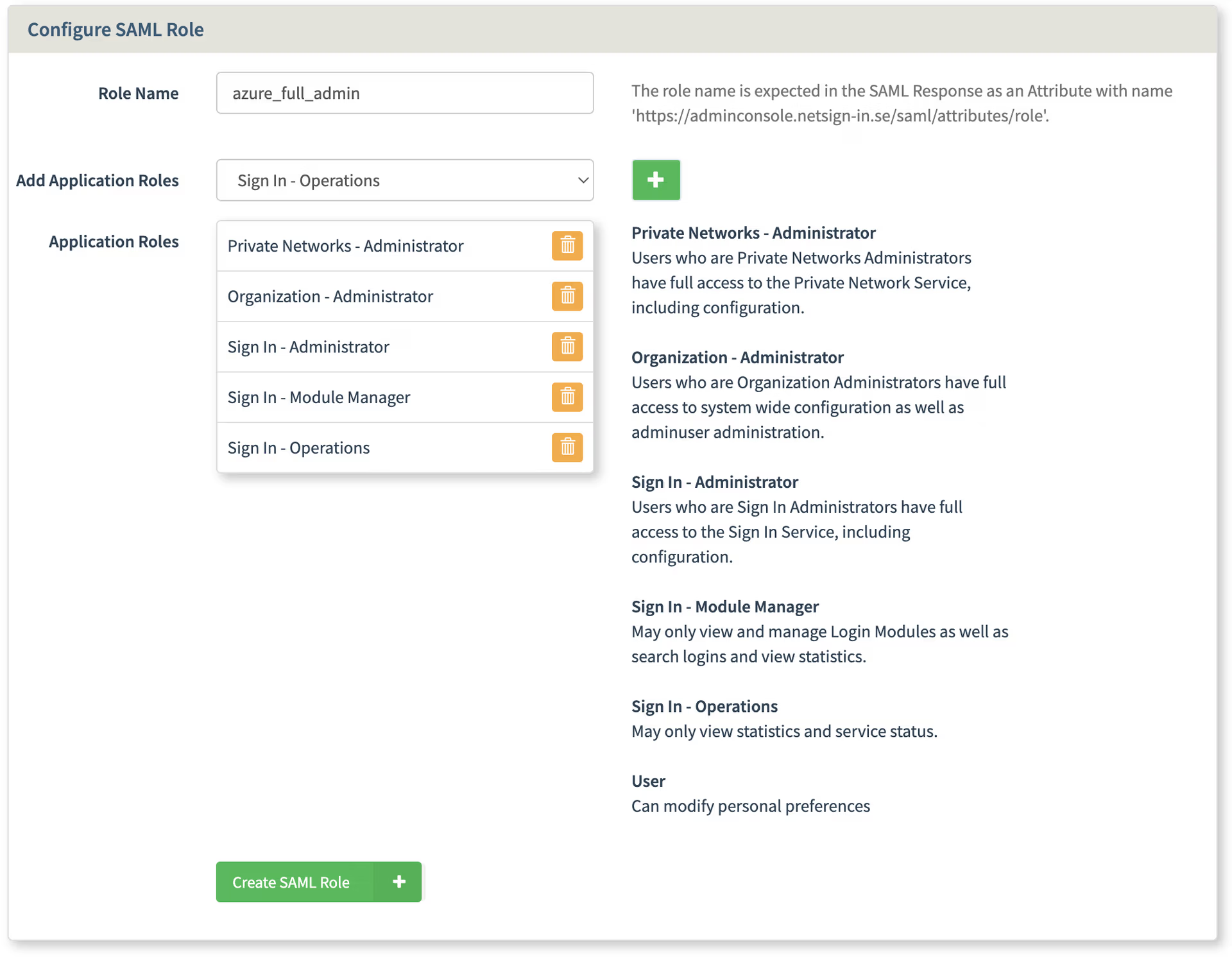
- When you have added the Application Roles you wish to map to this SAML Role click Create SAML Role.
- The SAML Role is now available, either as a Default Role Mapping or to be included in the SAML Response.