Overview #
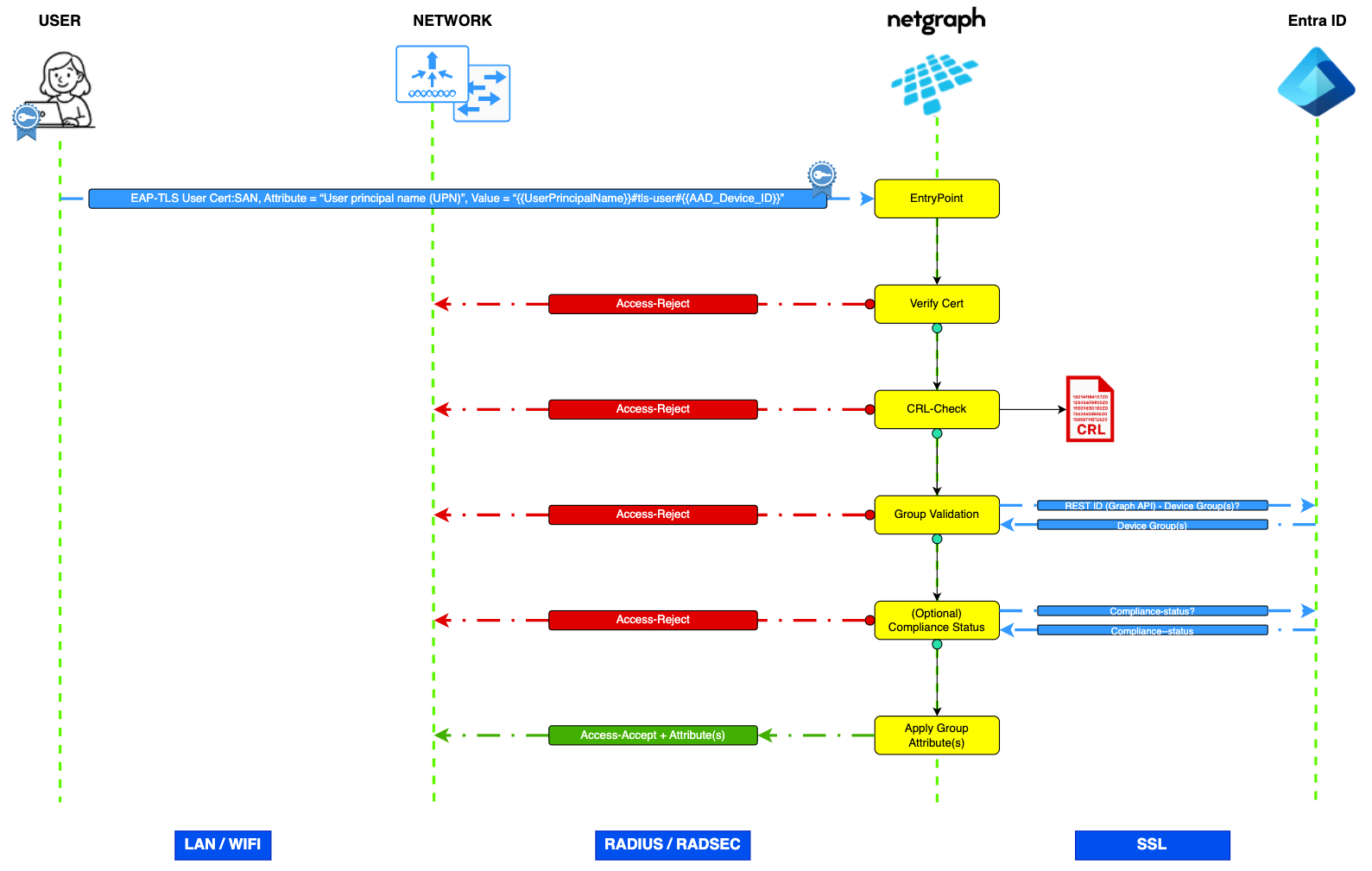
This guide shows how to setup the 802.1x Authentication (EAP-TLS) in a Netgraph EntryPoint RADIUSaaS context. This guide will setup a trust between EntryPoint RADIUSaaS context and the Microsoft Cloud PKI (Intune) and configure EntryPoint RADIUSaaS context to trust client authentication certificates issued by the Microsoft Cloud PKI (Intune).
Getting started #
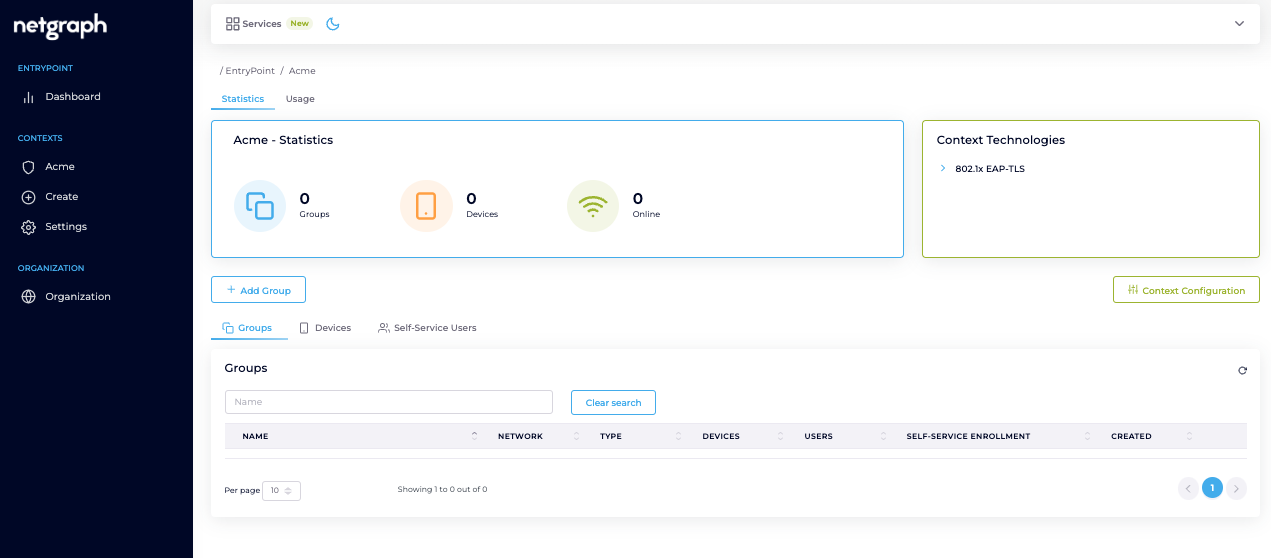
Navigate to your Netgraph Admin-Portal and log in. Locate you context created in previous step and click the “Context configuration” button on the right. #
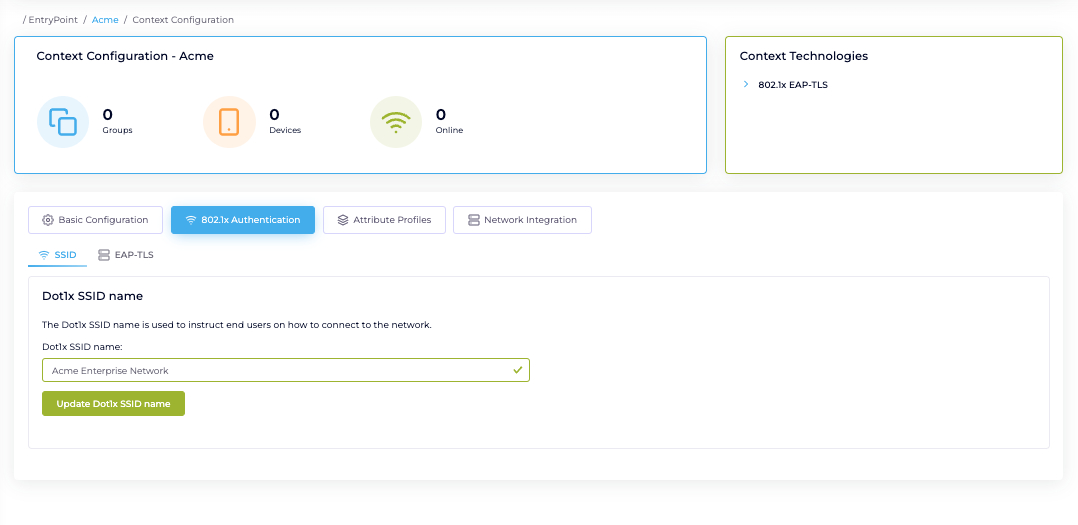
Click on “802.1x Authentication”. On the “SSID” tab, configure the SSID name and hit the “Update Dot1x SSID name” button to save. #
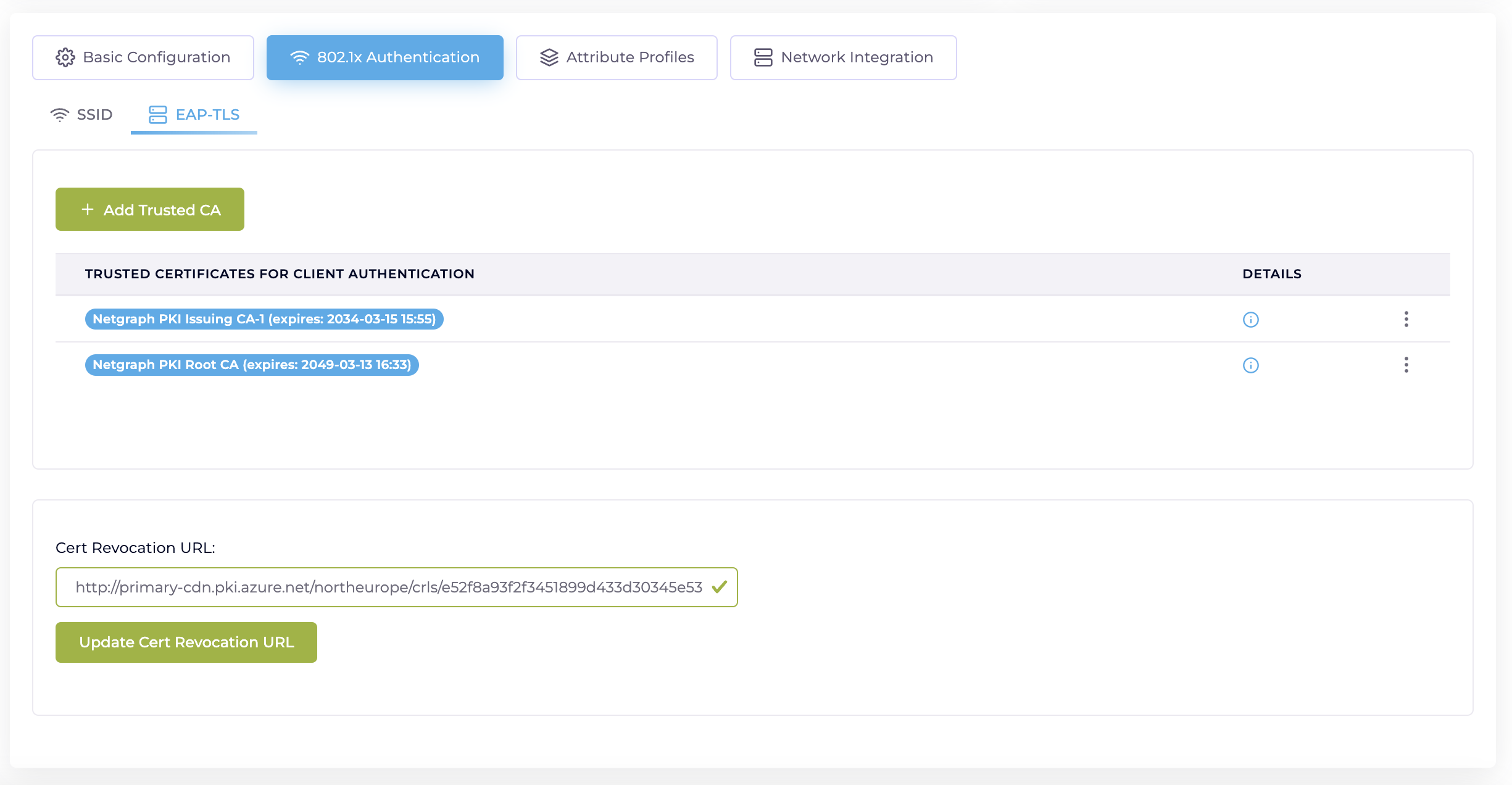
Switch to the “EAP-TLS” tab. #
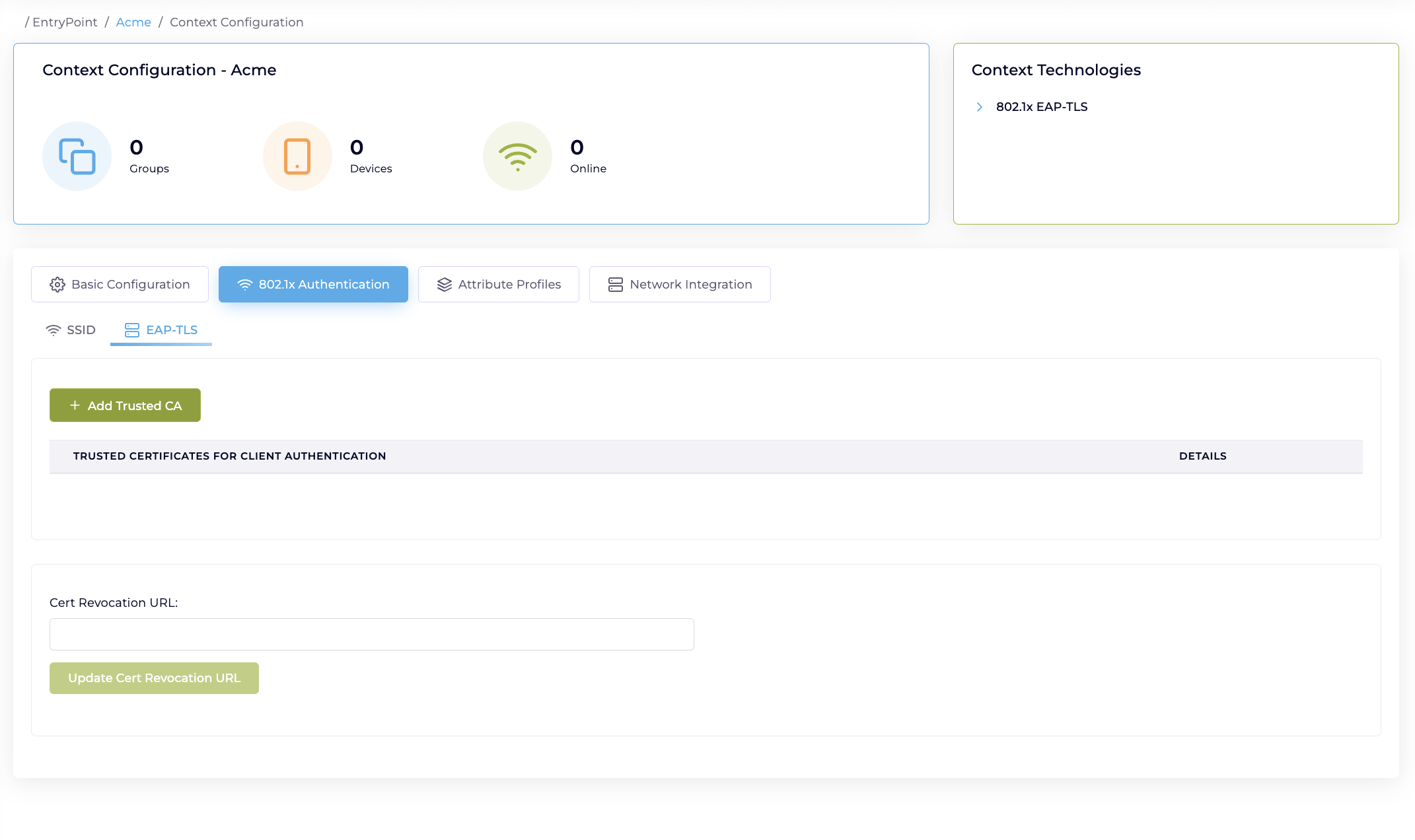
Upload the root + issuing-CA certificates generated in the Create Microsoft Cloud PKI (Root + Issuing CA) #
NOTE: At the moment we only support PEM Certifivcates. If your cert is in DER format you can convert it with OpenSSL to PEM
macOS:
openssl x509 -inform der -in <name>.cer -out <name>.pem
Windows:
certutil.exe -encode <name>.cer <name>.pem
- Click the “Add Trusted CA” -> “Change Certificate” and paste you certificate (in PEM format) into the text box.
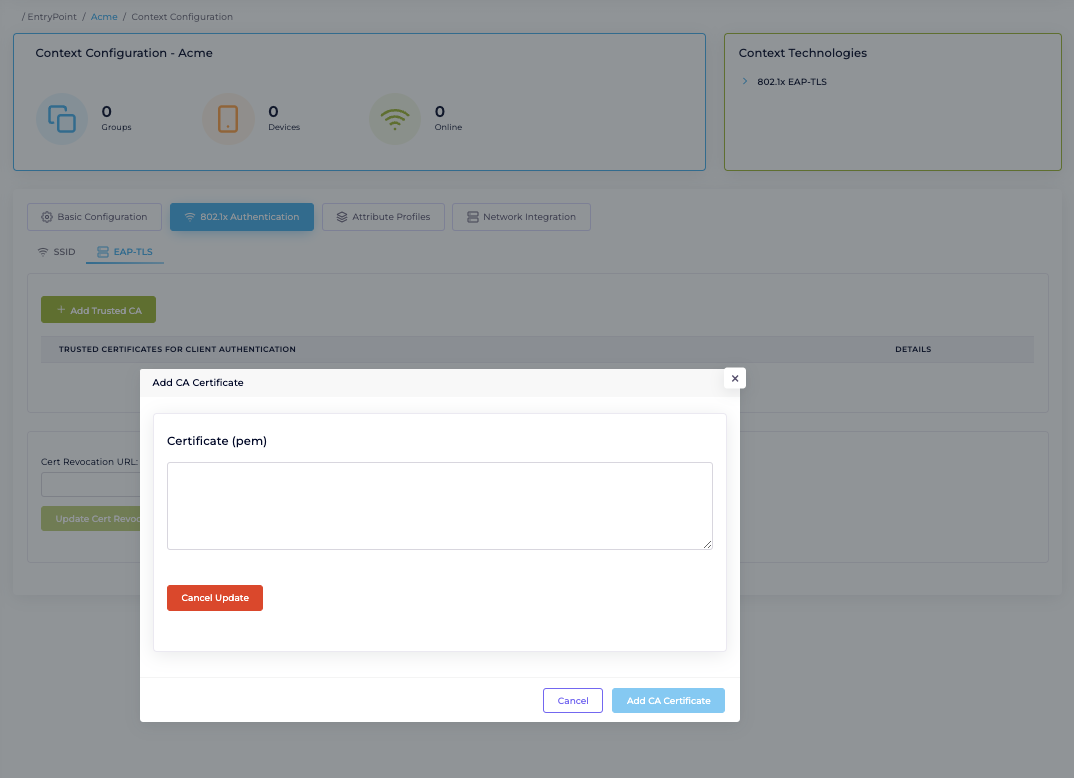
- Save and Add for both root + issuing-CA certificates.
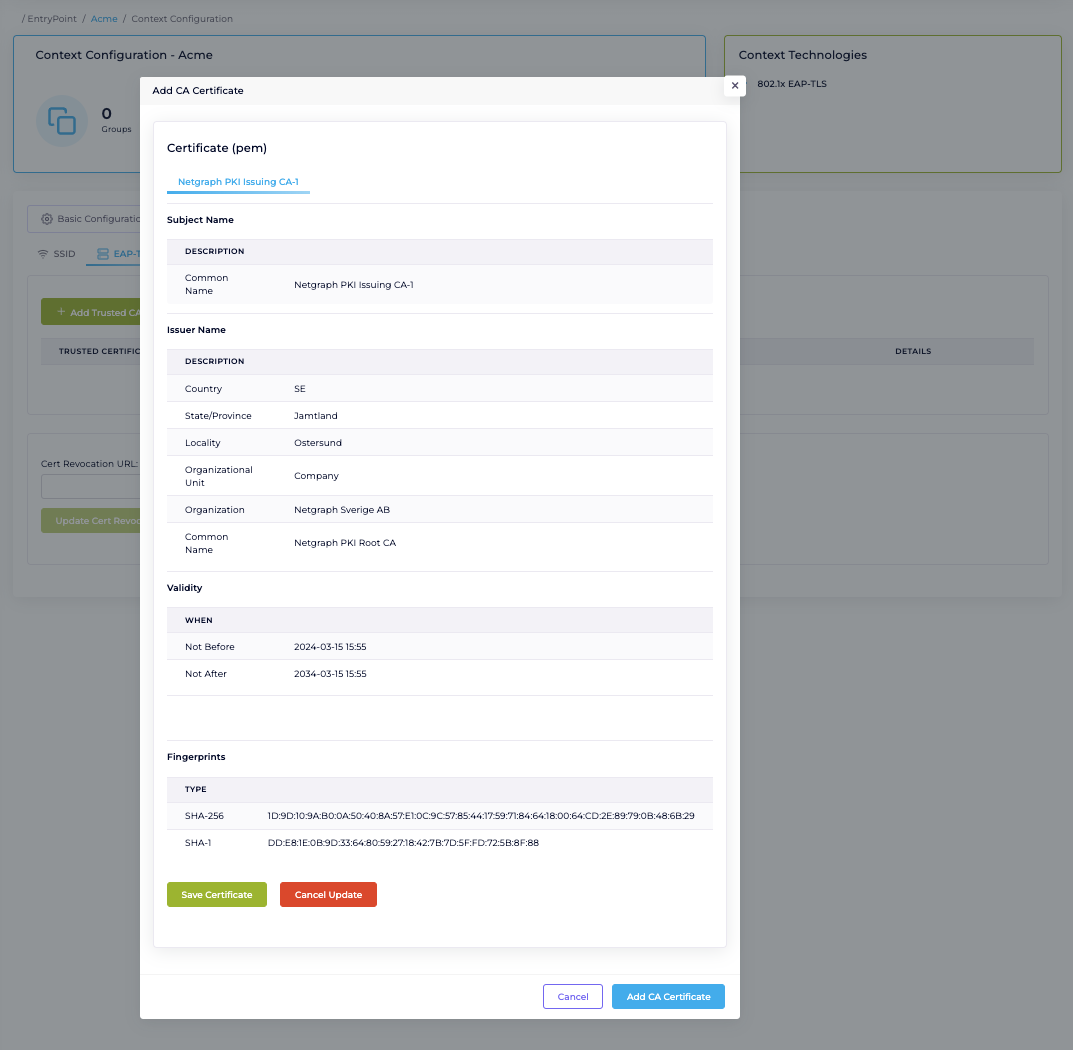
Configure the “CRL distribution point” URI generated in the Create Microsoft Cloud PKI (Root + Issuing CA). Don’t forget to save your configuration on the “Update Cert Revocation URL” button. #