
This guide provides step-by-step instructions for configuring Meraki networks to utilize a Pre-Shared Key (PSK) alongside MAC-based access control. By following this article, you will learn how to enhance network security and streamline device management, ensuring only authorized devices gain access while simplifying the user experience. This setup is ideal for environments where device authentication and network integrity are essential.
Get started #
Before configuring, create an SSID for the network in the Meraki Dashboard if there is not already one enabled.
In order to enable the integration, configuration is done in the Cisco Meraki Dashboard as well as in the Netgraph Connect administration portal.
Summary of the configuration steps:
| In the Netgraph Connect admin portal: | In the Cisco Meraki Dashboard: |
|
|
1. Enable Cisco Meraki integration #
In Netgraph Administration Portal, navigate to Sign In Administration-> Configuration-> Common Settings

2. Navigate to Meraki Configuration #
Once Meraki Integration is enabled, a new option is displayed in the navigation menu. Go to the Sign In Administration-> Configuration-> Meraki Configuration -> Settings.
- Select MAC-based Access Control in the drop down menu
- Click Update Settings when done.

3. Meraki Dashboard configuration #
The easiest way to configure the Meraki Dashboard is by following the configuration steps in the Netgraph Admin Portal. All the unique values are presented in the dashboard.
A) Activate ”Identity PSK with RADIUS” #
- In Meraki Dashboard navigate to: Wireless-> Access control-> Security page.
- Select “Identity PSK with RADIUS”.

B) Enable Mandatory DHCP #

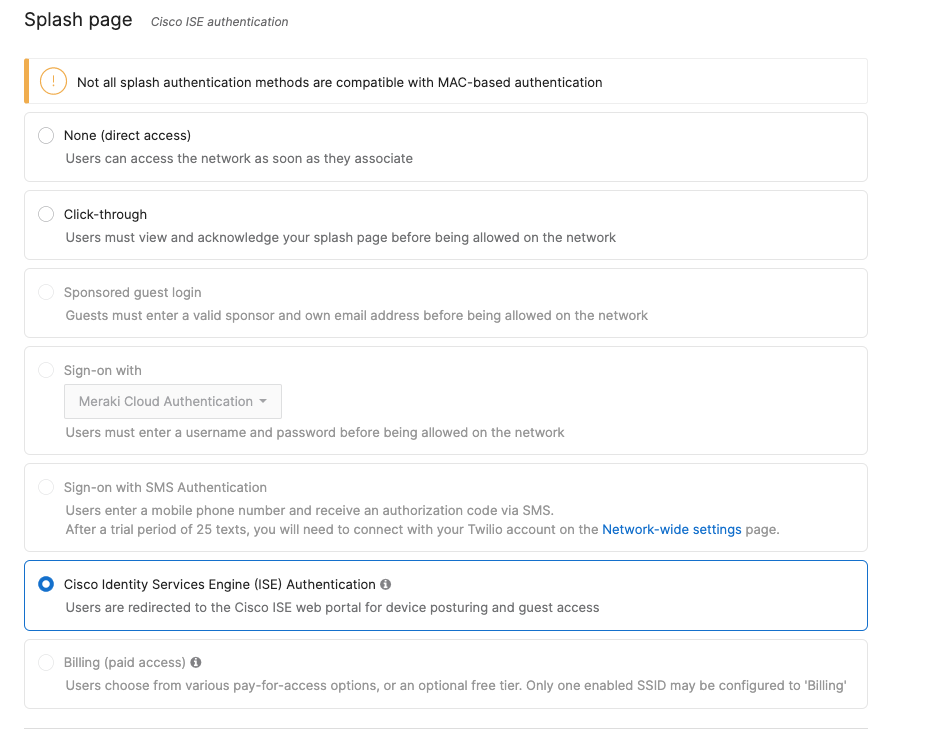
C) Activate ”Cisco Identity Services Engine (ISE) Authentication” #
- In Meraki Dashboard navigate to: Wireless-> Access control-> Splash page.
- Select “Cisco Identity Services Engine (ISE) Authentication”.
D) Enable Walled Garden #
- In Meraki Dashboard navigate to: Wireless-> Access control-> Splash page.
- Expand “Advanced splash settings”
- Enable “Walled garden”
- Add the domain displayed in the Netgraph Admin Portal.
- Select “Block all access until sign-on is complete“

E) Add radius servers #
- In Meraki Dashboard navigate to: Meraki Dashboard: Wireless-> Access control-> Radius.
- Add the host URL, port and secret as described in the table displayed in the Netgraph Admin Portal (only example below).

F) Activate Location and Scanning (optional but recommended) #
- Optional (but recommended), setup Meraki Location and Scanning Integration in the next section.
- In Meraki Dashboard navigate to Network-wide-> General-> Location and scanning.
4. Set Pre-Shared Key (PSK/Passphrase) #
In Netgraph Administration Portal, navigate to Sign In Administration-> Configuration-> Common Settings
- Scroll down to “Managed Pre-Shared Key (PSK) Settings“
- Configure the Pre-Shared Key (Passphrase) to be used on the wireless network
- Save the configuration
