
API Gateway Connectivity Troubleshooting Guide #
Overview
This guide is for customers struggling to integrate their Cisco ISE using the API Gateway. Before contacting support, please walk through the following steps to ensure the network, firewall, and ISE configuration are correct.
Connectivity Troubleshooting

- Step 1: Test Internal Connectivity to ISE API Gateway via Curl
- Step 2: Test External Connectivity to ISE API Gateway via Curl
- Step 3: Test Cloud Connectivity to ISE API Gateway from Netgraph Connectivity Platform Admin Console
- More: API User Troubleshooting
Connectivity Troubleshooting #
Step 1: Test Internal Connectivity #
Use a local machine inside your network to make a curl call to the ISE API Gateway on port 443.
A) Let’s start by checking the ERS Endpoint API availability by calling the ERS Endpoint Group API
curl -i -u ‘API_USER_NAME:API_USER_PASSWORD’ \
-H “Accept: application/json” \
‘https://ISE_IP_OR_HOST:443/ers/config/endpointgroup?page=1&size=10&sortasc=name’
- Expected result:
- HTTP/1.1 200
- Server {“SearchResult {…}…”}
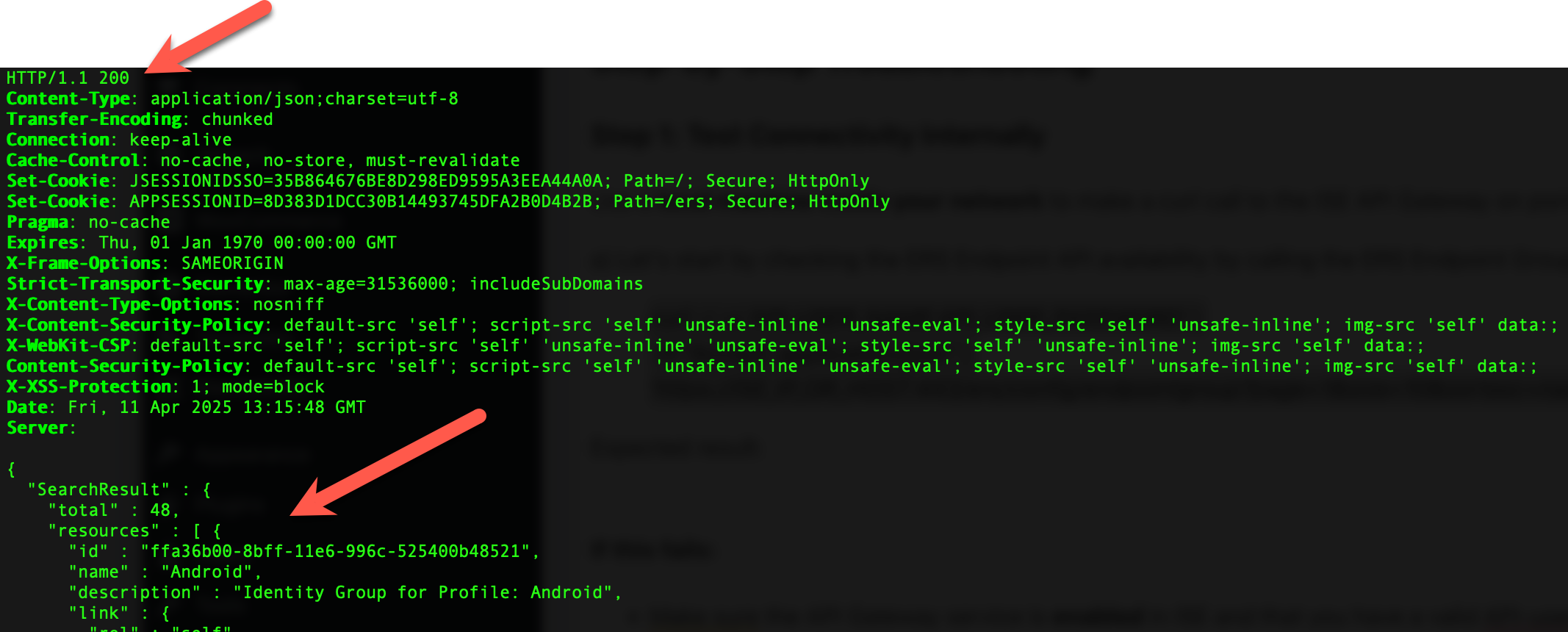
B) Next, let’s check the Open API availability by calling the Open API Endpoint Group API
curl -i -u ‘API_USER_NAME:API_USER_PASSWORD’ \
-H “Accept: application/json” \
‘https://ISE_IP_OR_HOST:443/api/v1/endpoint?page=1&size=1&filter=mac.CONTAINS.aa:aa:aa:aa:aa:aa’
- Expected result:
- HTTP/1.1 200
- Server: []
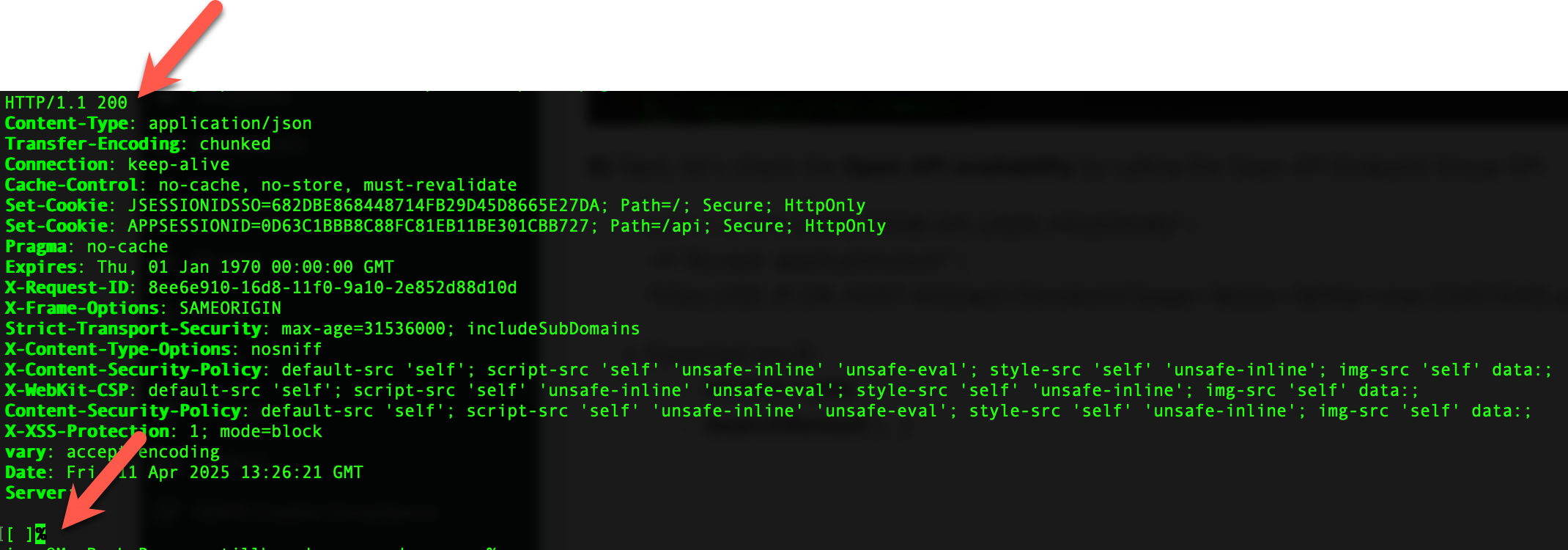
C) Finally, let’s check the Monitor API availability by calling the Monitor Session API
curl -i -u ‘API_USER_NAME:API_USER_PASSWORD’ \
-H “Accept: application/xml” \
‘https://ISE_IP_OR_HOST:443/admin/API/mnt/Session/MACAddress/AA:AA:AA:AA:AA:AA’
Note: This call requires -H “Accept: application/xml“
- Expected result:
- HTTP/1.1 500
- Server: <?xml version=”1.0″….>
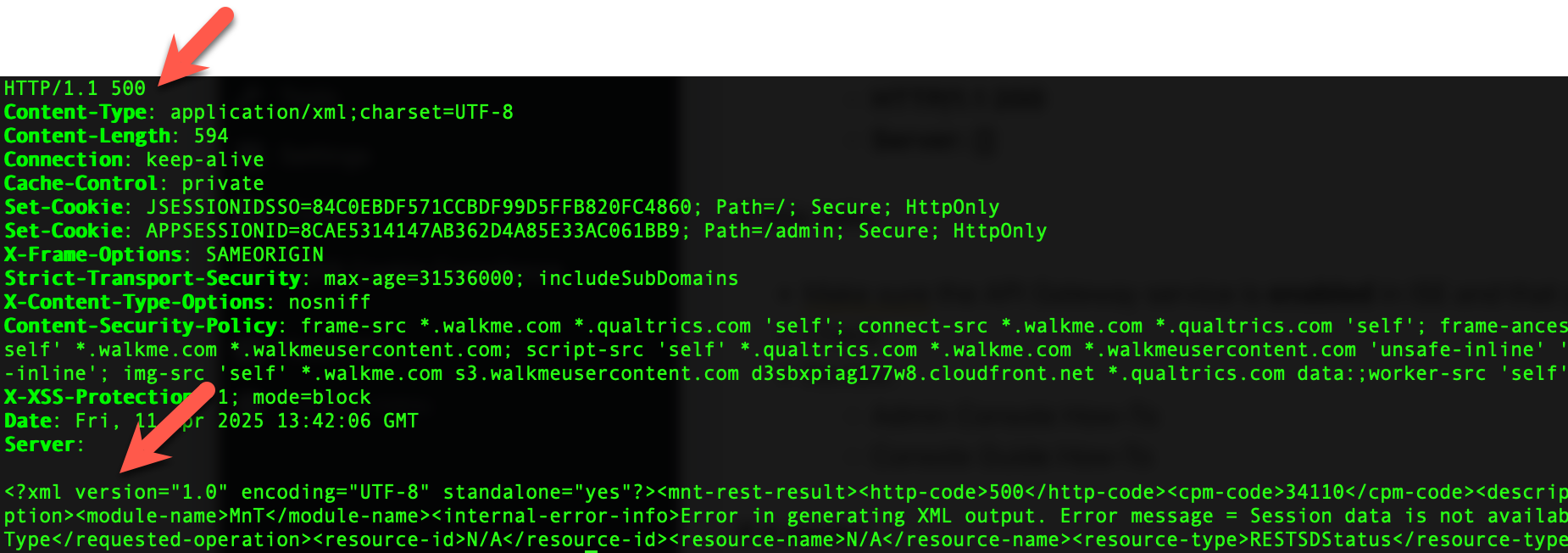
Note: It’s expected that this call receives HTTP/1.1 500
Summary Internal Connectivity
If you have received the expected result from all three tests:
- Continue with Step 2.
Otherwise:
- Receiving unexpected HTTP responses? Here are a few notes on that
- HTTP/1.1 302 This indicates that the requested service is not available via the API Gateway. Check that ERS and Open API are enabled in ISE API Settings.
- HTTP/1.1 403 This indicates that your API User is not set up correctly. Check the API User Troubleshooting guide below.
- HTTP/1.1 404 If all ERS, Open API, and Monitor services are started and enabled via the Service Gateway, this indicates a routing problem. Check if your proxy/firewall is set up correctly.
Step 2: Test External Connectivity #
From a device outside your firewall, attempt a curl call to the API Gateway.
Perform the same A), B), and C) as described in Step 1.
If you have received the expected result from all three tests:
- Continue with Step 3.
Otherwise:
- Receiving unexpected HTTP responses? Here are a few notes on that
- HTTP/1.1 302 If this step passed in Step 1, this indicates that something is misconfigured in your firewall. Check if your proxy/firewall is set up correctly.
- HTTP/1.1 403 If this step passed in Step 1, this indicates that something is misconfigured in your firewall. Check if your proxy/firewall is set up correctly.
- HTTP/1.1 404 If this step passed in Step 1, this indicates that something is misconfigured in your firewall. Check if your proxy/firewall is set up correctly.
Step 3: Confirm Access from Netgraph Cloud #
The final step is validating that Netgraph Cloud can reach the ISE API Gateway.
Expected Result:
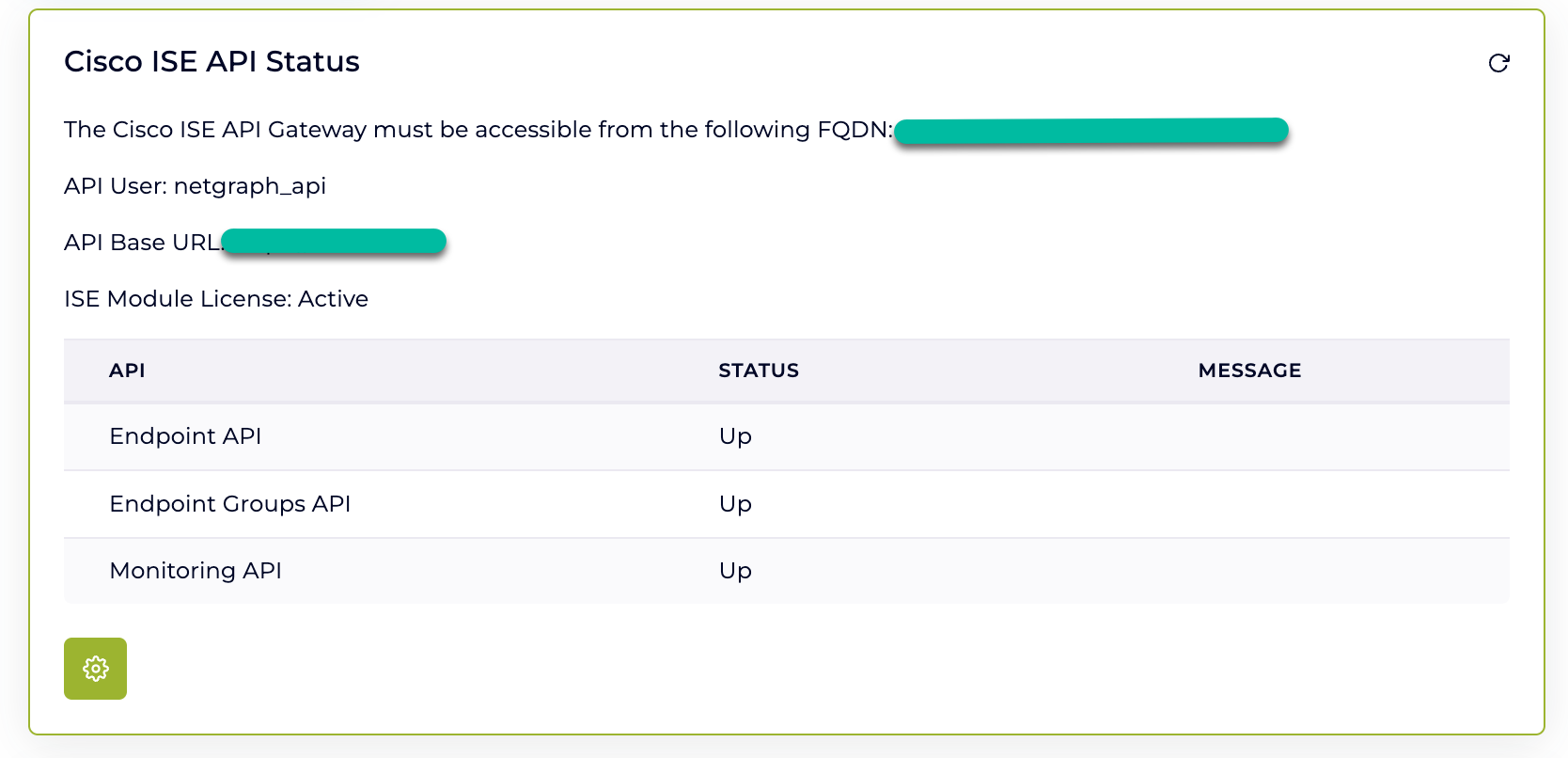
Otherwise:
- Receiving unexpected HTTP responses? Here are a few notes on that
- HTTP/1.1 302 If this step passed in Step 2, this indicates that something is misconfigured in your firewall. Check if your proxy/firewall is set up correctly and accepts requests from Netgraph Cloud.
- HTTP/1.1 403 If this step passed in Step 2, this indicates that something is misconfigured in your firewall. Check if your proxy/firewall is set up correctly and accepts requests from Netgraph Cloud.
- HTTP/1.1 404 If this step passed in Step 2, this indicates that something is misconfigured in your firewall. Check if your proxy/firewall is set up correctly and accepts requests from Netgraph Cloud.
API User Troubleshooting #
When working with Cisco ISE APIs, it’s not uncommon to run into authentication or access-related issues tied to the admin users configured for API access. One frequent symptom of such issues is receiving HTTP 404 (Not Found) or 401 (Unauthorized) responses from the API, even when the endpoint and credentials appear correct.
In many cases, the underlying issue isn’t the API itself, but rather the admin user’s account status. The user may be disabled, locked out, or suspended due to policy settings or failed login attempts. This section outlines how to identify and resolve these common API user issues.
Disabled Admin User #
If your API user has been disabled, authentication attempts will silently fail. This can happen automatically due to the Account Disable Policy or manually by an administrator.
What to check:
- Is the user disabled?
- Navigate to:
Administration → System → Admin Access → Administrators - Check the User status

- Navigate to:
-
Account Disable Policy:
-
Navigate to:
Administration → System → Admin Access → Authentication -
Review the Account Disable Policy section
-
Check if Disable account after _ days of inactivity is enabled
-
-
How to resolve:
-
Re-enable the user if it’s disabled
-
Adjust the disable policy settings as needed
Suspended or Locked Admin User #
Accounts can become suspended or locked due to repeated failed login attempts, for example, if an integration uses incorrect credentials repeatedly.
What to check:
-
Login lockout settings:
-
Navigate to:
Administration → System → Admin Access → Authentication -
Review the Login Failure Settings section
-
Check if Suspend or Lock Account with Incorrect Login Attempts is enabled
-
(e.g., number of failed attempts before lockout, lockout duration).
-
-
-
Login audit logs:
-
Navigate to:
Operations → Reports → Audit → Administrator Logins -
Filter by the API user’s username.
Look for messages such as:
Authentication for web services failed
Login failed – bad credentials
-
Important:
There is no dedicated “Locked” or “Suspended” status field shown in the Admin UI. The only way to confirm if a user is locked is through the audit logs.
Remediation:
-
To manually unlock the user, toggle the account:
-
Disable the user
-
Then enable it again
-
This will reset the lockout status and allow API access to resume.
Pro Tip: Validate with the GUI #
To ensure the issue is isolated to the user account and not the API setup itself:
-
Try logging in with the same credentials through the Cisco ISE Admin GUI.
-
If the GUI also fails, it’s likely a user account issue.