
This guide will walk you through the steps of creating a RADIUS VLAN attribute profile and assigning it to a group in EntryPoint.
Step 1 – Go to the Attribute Profiles Section #
From the Context Configuration screen, click on the Attribute Profiles tab.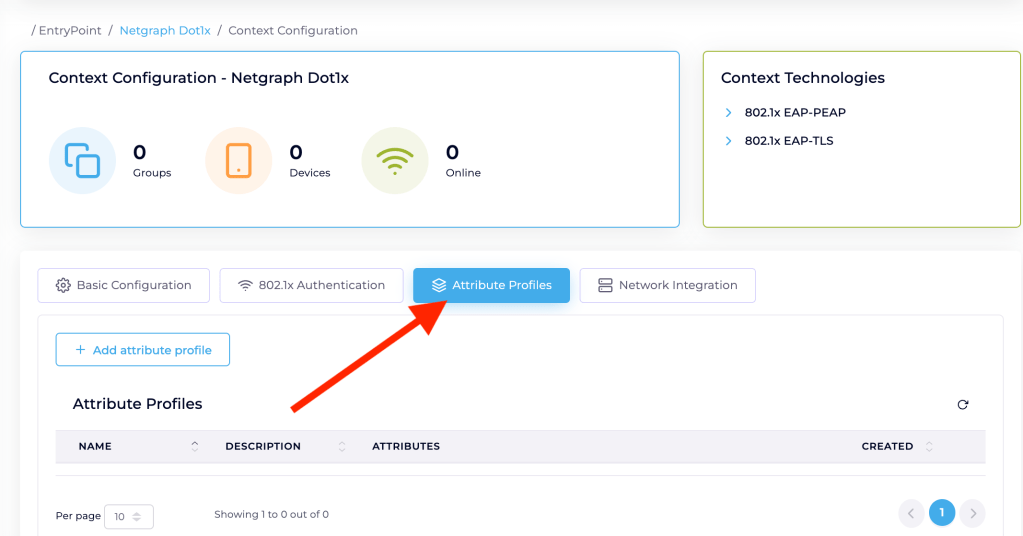
Step 2 – Add a New Attribute Profile #
Click the + Add attribute profile button.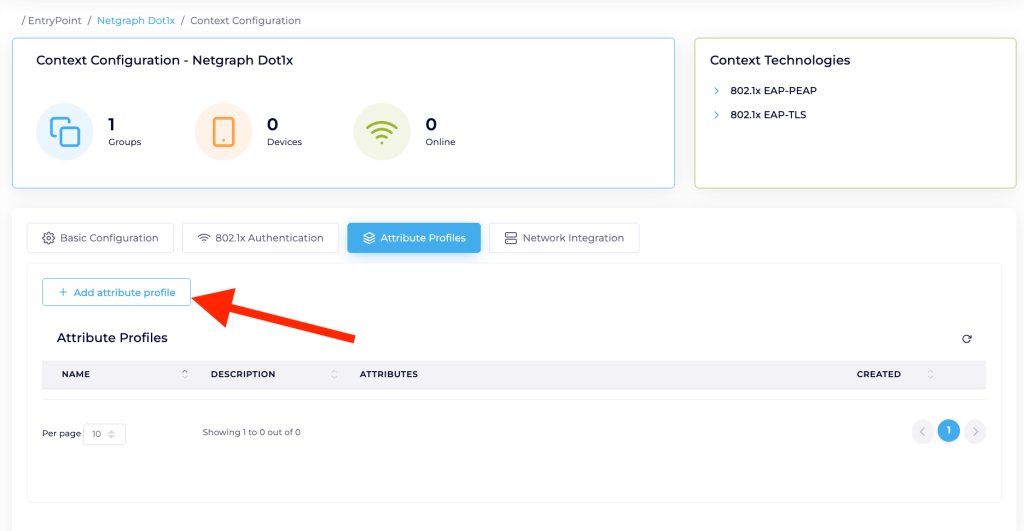
Step 3 – Add the First Attribute #
Set the attribute type to IEEE:Tunnel-Type and enter VLAN as the value. Click the green + button to add it.
Step 4 – Add the Second Attribute #
Select Tunnel-Private-Group-ID and enter 102. Click + again.
Step 5 – Add the Third Attribute #
Choose IEEE:Tunnel-Medium-Type and set the value to IEEE-802. Add it with +.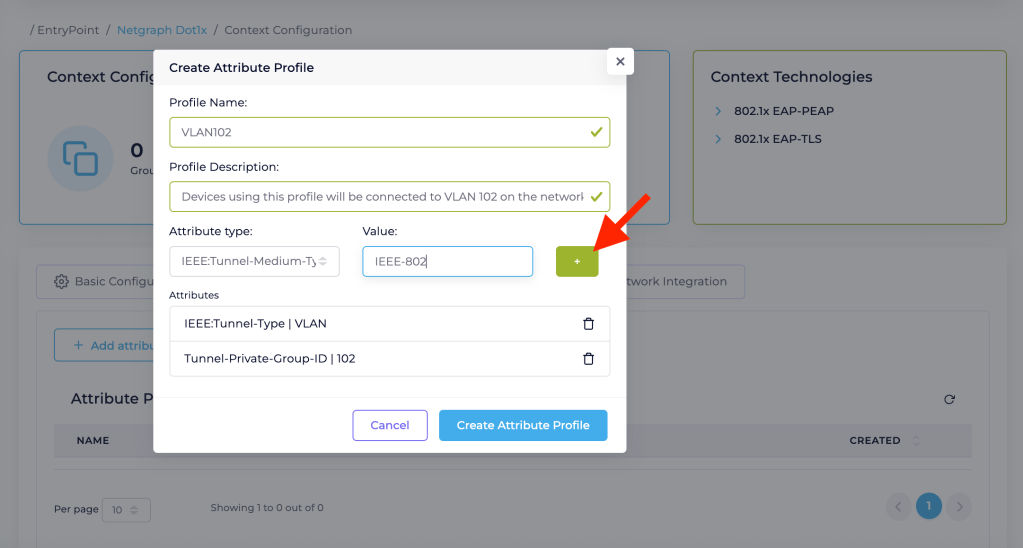
Step 6 – Save the Attribute Profile #
Review the added attributes and click Create Attribute Profile.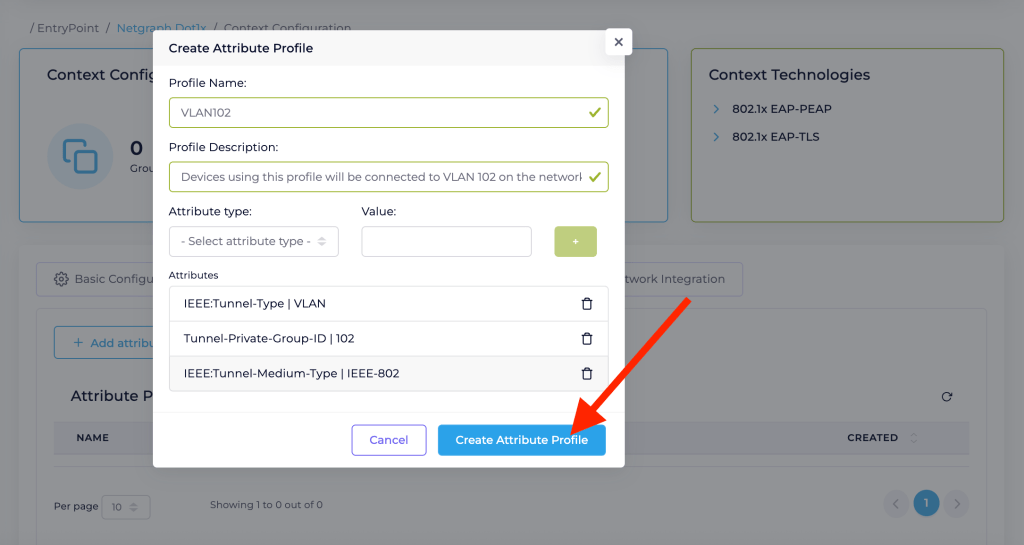
Step 7 – Confirm the Profile Is Created #
You should now see the new profile (e.g., vlan102) listed.
Step 8 – Assign the Profile to a Group #
Go to the Groups tab, select the target group (e.g., “Consultants”), 
then under Group Attribute Profiles, check the attribute profile you just created (e.g., vlan102) and click Update Group Attribute Profiles.

Done! Your RADIUS attribute profile is now active and associated with the selected group. Devices in this group will be assigned to VLAN 102 according to the specified RADIUS attributes.